

PDFs have become a standard for distributing a wide variety of documents. Whether they are business contracts, financial statements, or even personal documents. While they're useful for sharing information, not all documents should be accessible to everyone. This is why password protection is essential for all kinds of confidential information.
Password-protecting a PDF helps keep its information secure and prevents unauthorized access. No matter which operating system you use, Windows, Mac, or even your smartphone, there are several ways to protect your documents. By the end of this guide, you will know how you can password-protect a PDF using different methods and tools.
Why Should You Password Protect a PDF?
PDF files, when password-protected, add an extra layer of security and protect from unauthorized access. Below, we have listed a few reasons as to why you should consider it:
- Protect Sensitive data: If your PDFs contain sensitive data, such as personal details, employee records, or confidential business information, you can protect it from unauthorized access. For instance, employee records can be password-protected by HR teams to maintain confidentiality.
- Restrict editing and copying: Organizations can use PDF permissions to limit who can access, edit, copy, or print internal documents. Confidential company reports can be protected against unauthorized modifications or distribution.
- Protect against plagiarism: Writers, researchers, and publishers can control their literary writings or publications so they cannot be copied. For example , A writer can apply PDF restrictions to an unpublished manuscript to discourage unauthorized copying.
- Share Documents Safely: You can secure documents shared online with password protection. For instance, when sharing financial documents like bank statements or tax records, password protection is generally applied before sharing.
How to Password Protect a PDF File: 4 Easy Methods
Password-protecting a PDF isn't as hard as it sounds. Whether you use an online tool or work on your computer, you have several options to secure your files. Here are 4 easy methods to password-protect a pdf file step by step.
1: Password Protect a PDF Using an Online Tool
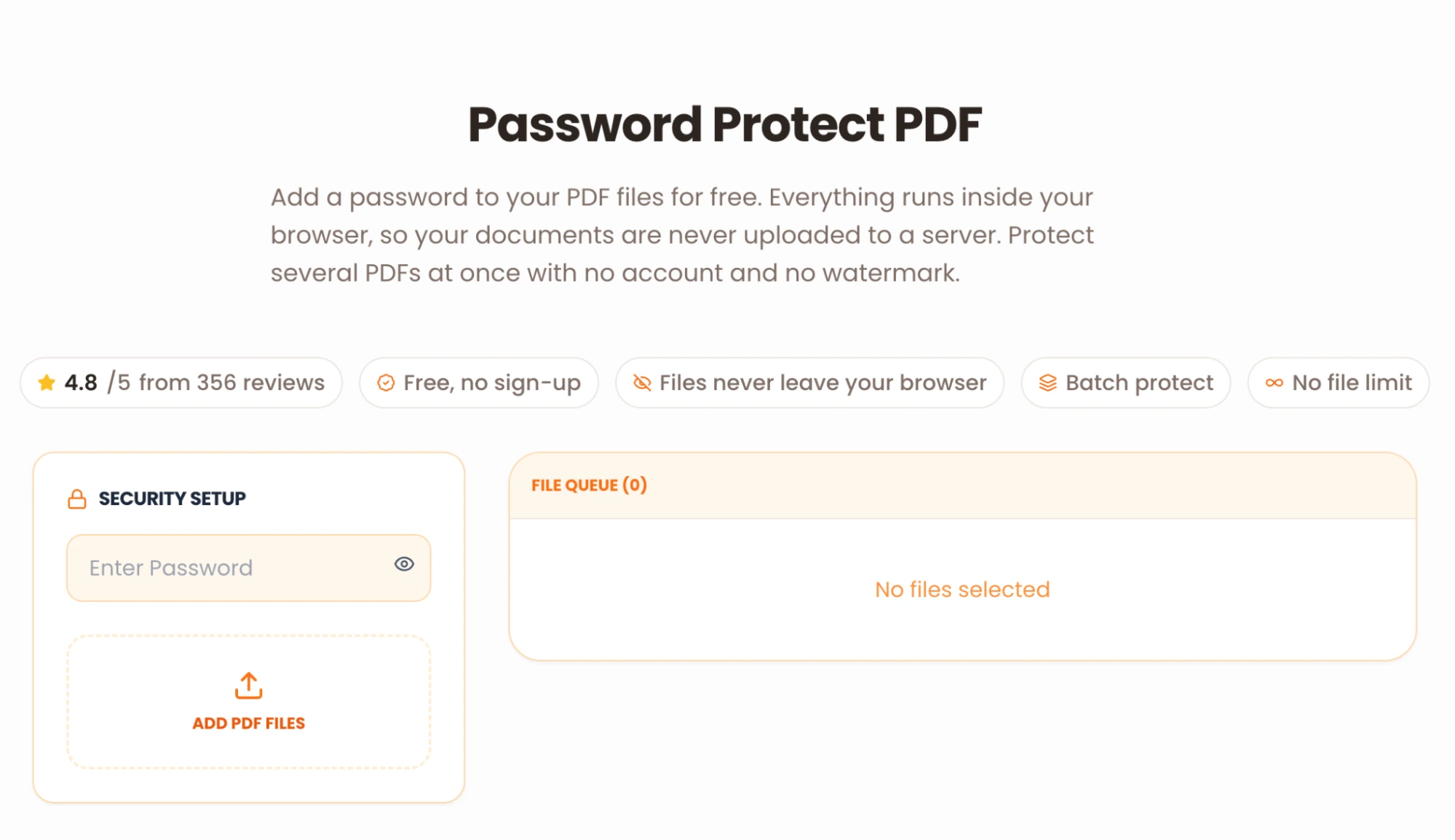
An easy way to protect your documents is to use online PDF tools. You do not need to install additional software on your computer for this. You can do this easily with Content Anchor’s PDF Password Protector tool that lets you add a password on your pdf directly from your browser.
How to get started:
- Click on Content Anchor's PDF Password Protector tool
- In the security setup section, add a suitable password and make sure the password is entered correctly
- Now click on “Add PDF files” and select one or multiple PDF files you want to password-protect
- Click “Protect All Files” to securely password-protect your PDFs directly in your browser.
- Download the protected PDFs individually or as a ZIP file, and open one to verify the password protection.
2: Password Protect a PDF on Mac Using Preview
For Mac users, you will be able to password-protect your PDFs through the Preview application. This does not require any additional software to be downloaded.
- Open your PDF in Preview.
- Click File > Export from the menu.
- Select Permissions to access the password settings.
- Enable the option to require a password to open the document.
- Enter your password, verify it, and click Apply.
- Click Save to create your protected PDF.
3. Password Protect a PDF Using Microsoft Word
When your document is in the Word format, you can set a password for it while converting it into a PDF. This feature is available in the supported desktop version of Microsoft Word.
- Open your document in Microsoft Word.
- Click File > Save As and select the location.
- Choose PDF from the file format options.
- Click Options and select Encrypt the document with a password.
- Enter and confirm your password.
- Click Save to export your password-protected PDF.
4: Password Protect a PDF Using Adobe Acrobat
In addition, Adobe Acrobat allows you to add password protection to your existing PDF files.
- Open your PDF in Adobe Acrobat.
- Select All Tools > Protect a PDF (the menu may vary by version).
- Choose Protect with Password.
- Select whether you want to restrict viewing or editing.
- Enter your password and confirm it.
- Apply the changes and save the protected PDF.
How to Password Protect a PDF on Your Phone
You don't only need a computer to keep your PDFs safe. It is possible to password protect a files even on Android or an iPhone device.
How to Password Protect a PDF on Android
- Open a browser and visit Content Anchor's PDF Password Protector.
- Select and upload the PDF you want to secure.
- Enter a strong password and confirm it.
- Tap Protect All Files and download your secured PDF.
How to Password Protect a PDF on iPhone
- Open the PDF in the Files app.
- Tap the file name or menu at the top and look for Lock PDF.
- Enter and verify your password.
- Tap Done to save the password-protected PDF.
Wrapping Up
Password-protecting a PDF is an efficient way to keep your documents safe and prevent unauthorized access. Whether you're on a computer or a mobile phone, there are several ways to increase your documents' security.
An easy and fast way to protect your PDFs is to use Content Anchor’s PDF Password Protector in your web browser. This lets you add an extra layer of protection without having to install any additional softwares.
FAQs
How do I password protect a PDF for free?
Yes, you can password-protect a PDF for free using online PDF tools such as Content Anchor’s password protect PDF Tool. You can also use built-in applications such as Preview on Mac.
Can I share a password-protected PDF through email?
Yes, a password-protected PDF can be shared through email; for extra security, send the password on another channel of communication
How do I save a PDF file that is password-protected?
Open the password-protected PDF and enter the right password to access it. Then click Save or Download to store the file on your device. The PDF will generally retain its password protection when saved.