You can sell digital products without building an online store. For most creators, coaches and small brands, the setup that works is simpler: a checkout you already trust, like Stripe, Gumroad, Lemon Squeezy or PayPal, and one page that holds your products, your proof and your buy buttons. Your followers already tap your link in bio. Make that page your shop.
This guide covers which digital products sell, how to set up checkout and delivery, and how to turn a link page into a sales page that people actually buy from.
Short answer: to sell digital products, pick one product your audience already asks for, create the file, set up a payment link with a processor like Stripe or Gumroad, build a one-page sales page with the price, proof and a buy button, decide how the file is delivered, then put that page in every bio and post.
What Digital Products Can You Sell?
A digital product is anything you make once and sell many times, with nothing to ship. If people regularly ask you "how did you do that?", the answer is probably a product.
| Product type | Examples | Usually delivered as |
|---|---|---|
| Guides and ebooks | Recipe book, travel itinerary, study notes | PDF or EPUB |
| Templates | Notion workspace, Canva pack, CV template, budget spreadsheet | A duplicate link, XLSX or PPTX |
| Presets and filters | Lightroom presets, video LUTs | ZIP |
| Design assets | Fonts, icons, mockups, brushes | TTF or OTF, ZIP, PSD, AI |
| Audio | Sample packs, beats, guided meditations | MP3, WAV, ZIP |
| Printables | Planners, wall art, worksheets | PDF or PNG |
| Video lessons | A mini course, a recorded workshop | MP4 or a course platform link |
| Time, sold as a product | A 30-minute call, a portfolio review, coaching | A booking link |
Do You Need an Online Store to Sell Digital Products?
No. There are three common ways to sell digital goods, and a full store is the heaviest of them.
| Setup | Good for | The catch |
|---|---|---|
| Marketplace (Etsy and similar) | Getting found by people already shopping | Marketplace fees, and you sit next to hundreds of similar listings |
| Full online store | Large catalogs with carts, coupons and accounts | Monthly cost and a lot of setup for a handful of products |
| Link page plus your own checkout | Creators and small brands with 1 to 20 products | You bring the traffic, usually from social media or email |
How to Sell Digital Products in 6 Steps
1. Pick one product your audience already asks for
Look at your DMs and comments. The question you answer every week is your first product. Before you build it, test demand: add a free Email Signup block to your page with a line like "Get the preset pack first, launching in May". Every sign-up lands in your subscribers list in the dashboard, which you can export as a CSV. Twenty sign-ups from a small audience is a real signal.
2. Make the file and protect it
Most first products are PDFs, so a few free tools help:
- Combine your pages with image to PDF if you designed them as images.
- Keep the download small with the PDF compressor.
- Stamp your name on every page with the PDF watermark tool to discourage casual sharing.
- Add a password if it suits your product. Our guide on how to password protect a PDF walks through it.
3. Set up checkout with a processor you trust
You need somewhere for the money to go. Create a product or payment link in one of these:
- Stripe Payment Links
- Gumroad
- Lemon Squeezy
- PayPal
- UPI, popular in India
- Mercado Pago, popular in Latin America
- Any other checkout with a secure https link
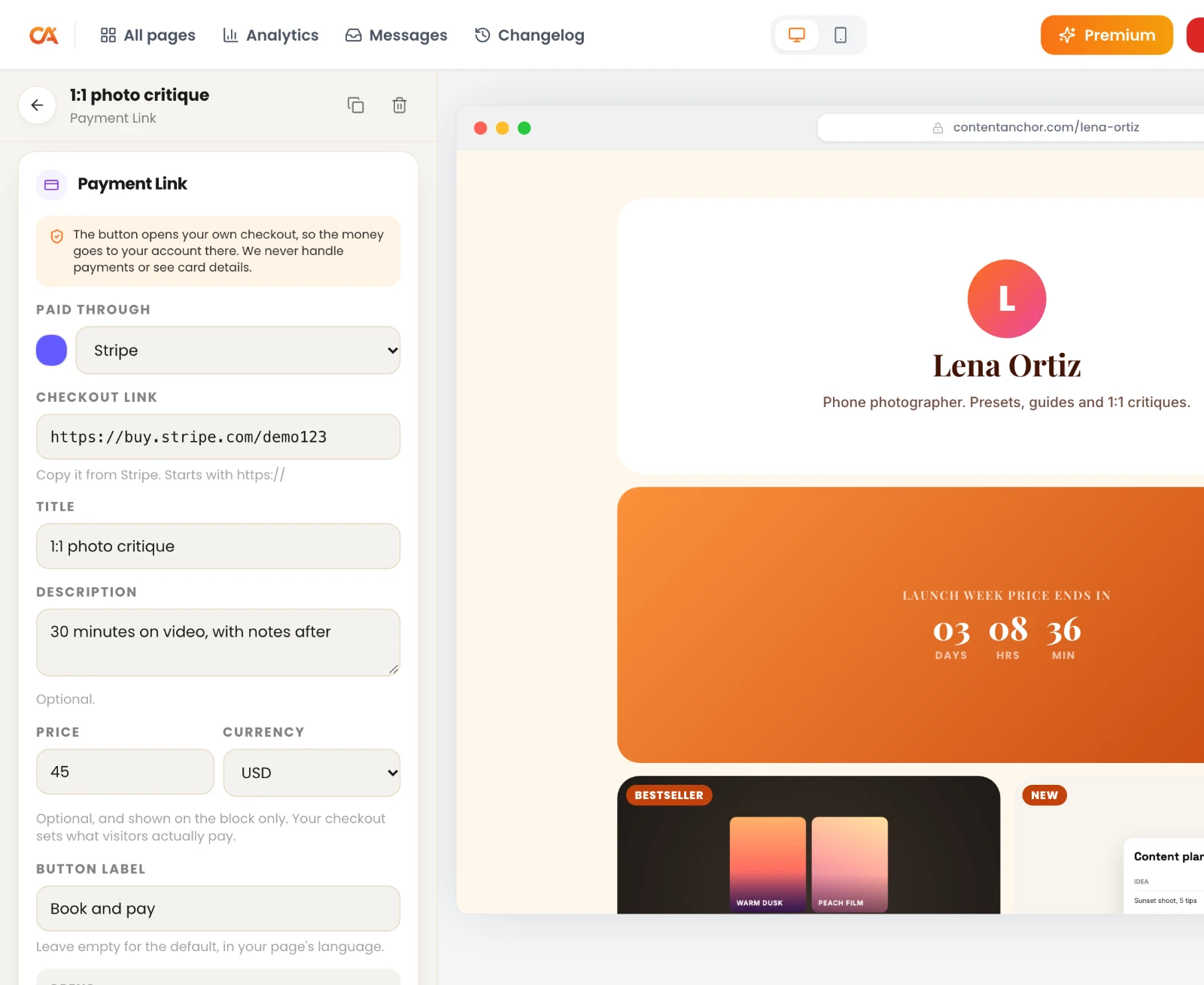
ContentLinks never touches the money. When a visitor taps Buy, they go straight to your checkout and pay your account. ContentLinks takes no cut of your sales; you only pay your processor's normal fees. The Payment Link block also checks that a "Pay with Stripe" button really opens a Stripe checkout, so a pasted dashboard link or a typo can't send buyers somewhere strange.
4. Build the sales page
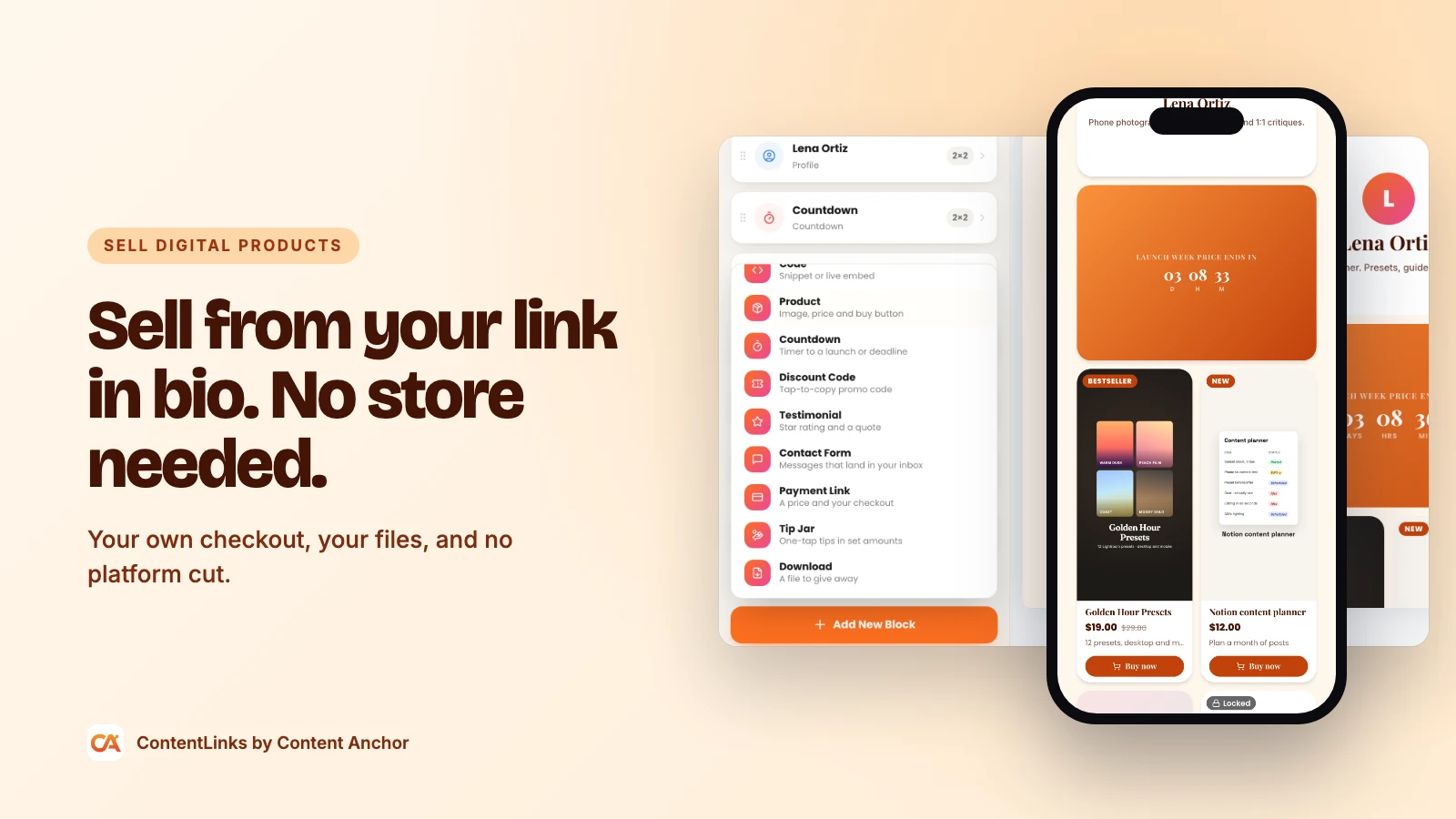
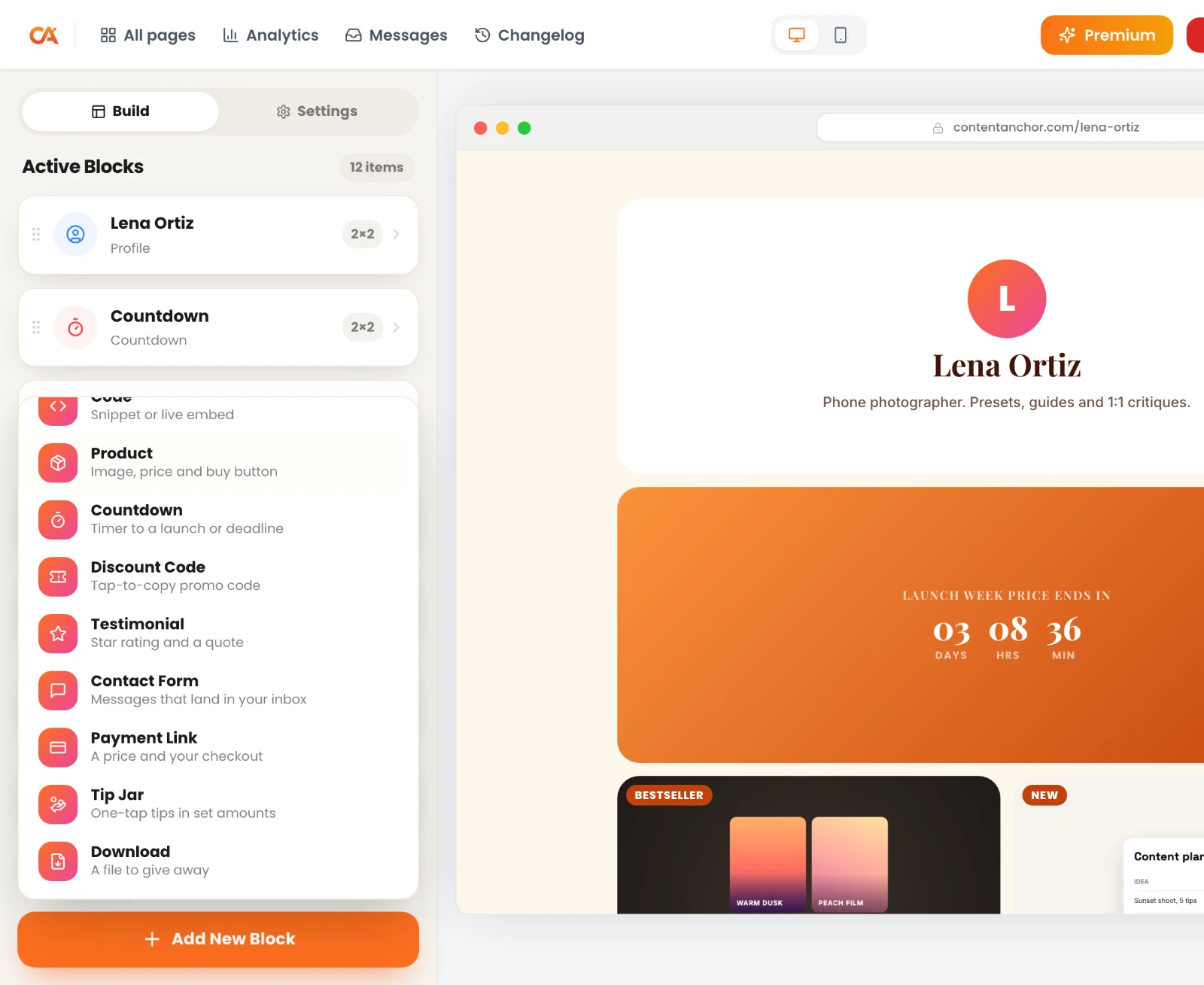
Now build the page your buyers will land on. Sign up free and start from the Shop template (free), or Shop Pro, Creator Pro or Coach on Premium. Then add the selling blocks:
- Product: an image, a title, a price and a buy button. Add a compare-at price and the card shows the discount for you. Prices display properly in 12 currencies, including USD, EUR, GBP, INR, AUD, CAD and BRL.
- Payment Link: a price and a button to your checkout, ideal for services, calls and bundles.
- Testimonial: star ratings and buyer quotes.
- FAQ: answers to "What format is it?", "Does it work on iPad?" and "Can I get an invoice?" before they stop the sale.
- Discount Code: a tap-to-copy promo code for your email list or a launch week.
- Countdown: a timer to your launch or to the end of a sale.
- Tip Jar: set amounts for pay-what-you-want products or for fans who just want to support you.
Product, Payment Link, Testimonial, Discount Code, Countdown and Tip Jar are Premium blocks. FAQ and Email Signup are free.
5. Decide how buyers get the file
There are three good ways to deliver a digital product, and the right one depends on the price and how much you care about sharing.
- Let your checkout deliver it. Gumroad and Lemon Squeezy can send the file to each buyer after payment. Best for higher-priced files and anything that needs a licence key.
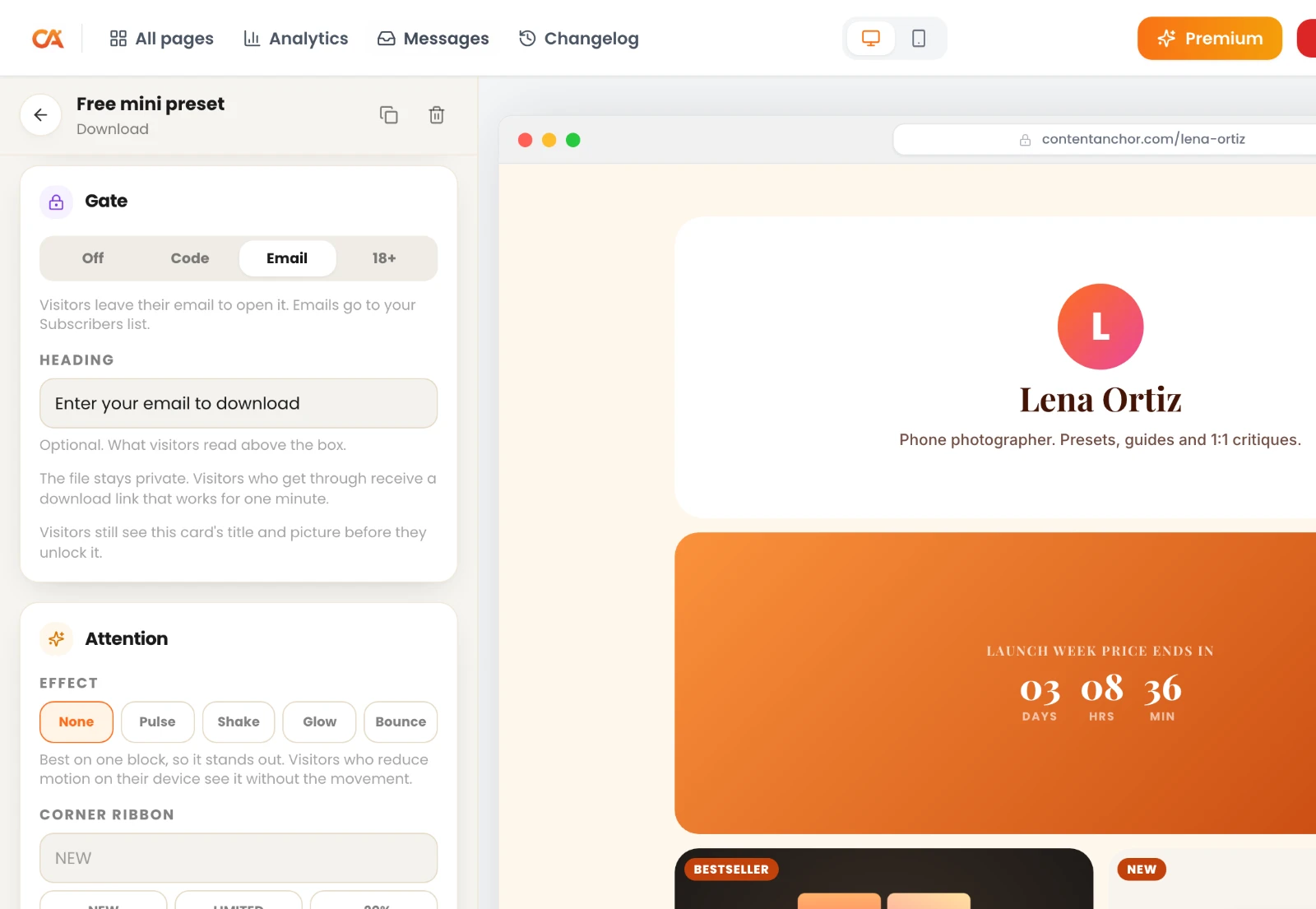
- Use a Download block behind a code. Upload the file to a Premium Download block (up to 25 MB; PDF, ZIP, EPUB, MP3, WAV, MP4, PSD, AI, fonts and more), lock it with a code gate, and put the code in your checkout's confirmation message. Visitors only ever get a short-lived link, never the file's storage address. Because everyone shares one code, this suits low-priced items best.
- Give a free file for an email. Lock a free guide behind an email gate (gates are Premium too). Each email goes straight into your subscribers list, which is the start of your sales funnel.
6. Send traffic to the page
A sales page with no visitors is a well-designed secret. Put your page URL:
- In your Instagram, TikTok and YouTube bios. Our guide on what a link in bio is shows where the link goes on each platform.
- In Instagram Stories, using the link sticker.
- On printed inserts and slides, as a QR code. The editor's share panel creates a QR code and a Story image for your page.
- At the end of every email to your list.
How to Sell on Instagram and TikTok Without a Shop
You don't need an Instagram or TikTok shop to sell downloads. You need a reason to tap the link in your bio and a page that closes the sale once they do.
- Tell people where to go. End posts about the topic with "The full guide is in my bio". Specific beats vague.
- Keep the product at the top of your page. Someone who taps from a reel about presets should see the presets first, not your podcast.
- Use Stories for launches. Link stickers send viewers straight to your sales page, and a Countdown block on that page makes the deadline real.
- Know the TikTok rule. TikTok shows the bio link field to business accounts, and to personal accounts once they meet its follower requirement, so check your account type first.
- Watch where buyers come from. Premium analytics show your referrers (Instagram, TikTok, X, direct, search) and the click rate of each block, so you can see which platform actually sells.
If your bio itself needs work, our guide to writing a social media bio covers the call to action part.
Which ContentLinks Block Does What
| Block | Use it for | Plan |
|---|---|---|
| Product | One product with image, price and buy button | Premium |
| Payment Link | A price and your own checkout | Premium |
| Tip Jar | Pay what you want, in set amounts | Premium |
| Download | Files up to 25 MB, optionally behind a gate | Premium |
| Discount Code | Tap-to-copy promo codes | Premium |
| Countdown | Launch dates and sale deadlines | Premium |
| Testimonial | Star ratings and buyer quotes | Premium |
| Email Signup | Waitlists and free lead magnets | Free |
| FAQ | Answering objections before checkout | Free |
| Button | A link to any checkout or product page | Free |
What It Costs to Sell Digital Products This Way
- ContentLinks Free: $0. You get one page and the free blocks, so you can already link a Button to a Gumroad or Stripe product page.
- ContentLinks Premium: $5 a month or $48 a year, with the selling blocks above, gates, file downloads, full analytics, and GA4 and Meta Pixel for tracking ads. New accounts get 14 days of Premium free, no card needed. See the pricing page.
- Your payment processor: its normal fee per sale. Check their pricing page, because rates differ by country and payment method.
- ContentLinks' cut of your sales: none.
Pricing Your First Digital Product
- Price on the result, not the page count. A 12-page guide that saves someone a weekend is worth more than a 100-page guide nobody finishes.
- Launch with a real discount, then end it. Use a compare-at price on the Product block and a Countdown with an honest end date.
- Reward your list. Give subscribers a Discount Code before anyone else.
- Raise the price after your first reviews. Proof makes a higher price easier to accept.
Mistakes That Cost Sales
- Building a huge course first. Start small and let buyers tell you what to make next.
- Burying the product under 20 links. Put the product first and use a Divider block to separate everything else.
- No proof. Even one quote from a happy buyer helps. Add a Testimonial as soon as you have one.
- Fake urgency. A countdown that resets every visit destroys trust. Only count down to real dates.
- Guessing instead of measuring. Free analytics already show views, clicks and click-through rate, compared with the previous 7 days.
Frequently Asked Questions
Do I need a website to sell digital products?
No. A single page with your products and a link to your checkout is enough for most creators. ContentLinks gives you that page at contentanchor.com/yourname, and it works as a full one page website if you want more than a shop.
Can I sell digital products on the free plan?
Yes, with a simple setup. Add a free Button block that links to your Gumroad, Lemon Squeezy, Stripe or PayPal product page. The Product, Payment Link, Tip Jar and Download blocks are Premium.
Does ContentLinks take a percentage of my sales?
No. Buyers pay you directly through your own checkout. ContentLinks never processes the payment, so there's no transaction fee from us.
How do buyers receive the file?
Three ways: your checkout emails it (Gumroad and Lemon Squeezy can do this), a Download block behind a code you share after purchase, or a free file behind an email gate. Pick based on price and how much you need to protect the file.
Which payment methods can I accept?
Whatever your processor supports. The Payment Link block works with Stripe, Lemon Squeezy, Gumroad, PayPal, UPI, Mercado Pago and any other secure checkout link.
What file types can I offer as downloads?
PDF, EPUB, ZIP, images (PNG, JPG, WEBP, GIF), audio (MP3, WAV, M4A), video (MP4, MOV), Office files (DOCX, XLSX, PPTX), TXT, CSV, PSD, AI and font files (TTF, OTF, WOFF2), up to 25 MB each. Programs and scripts are blocked for your buyers' safety.
Can I sell digital products on Instagram without a shop?
Yes. Put your sales page in your bio, point to it in captions and use Story link stickers. Visitors buy on your page through your checkout, so Instagram never has to support the product.
Start Selling This Week
Pick the product people keep asking you for, set up one payment link, and build the page around it. Create your free sales page with ContentLinks, or see the plans side by side first.
Already have a product to show off? Our guide to building a free portfolio website works well alongside your shop, and if you sell from a physical location too, see how to build a free small business website on the same tool.